Quote Loop, Help Centre
How to set up, get around the app, and fix the little things that trip people up. Can't find an answer? Email info@quoteloop.com.au.
Getting started: set this up first
Before you send your first quote or invoice, fill in your business details so your documents look professional and your clients know how to pay you. Go to Menu (⋯) → Settings and complete:
- Business details: owner name, business name, ABN, phone, email, trade type.
- Logo: upload your logo (image up to 10 MB) so it appears on your PDFs.
- Bank & payment details: bank account name, BSB, account number. Turn on BPAY and add your biller code if you use it. This is how payment details show on invoices.
- Tax: set your label and rate (e.g. GST 10%, VAT, Sales Tax). It's applied to new quotes and invoices, and you can toggle it on or off per document.
- Default terms and email signature: added to new quotes/invoices and the emails you send.
Tap Save. You'll see "Saved. These details appear on new quotes and invoices." Anything you create after saving will use them.
Getting around the app
The bottom tab bar is always there:
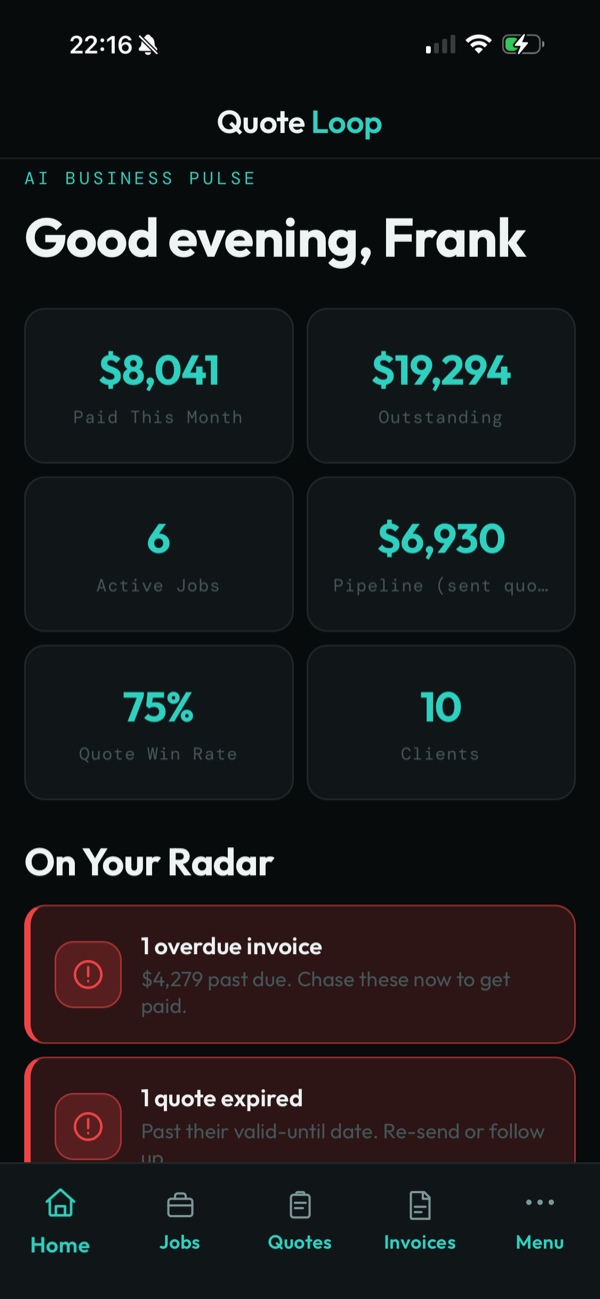
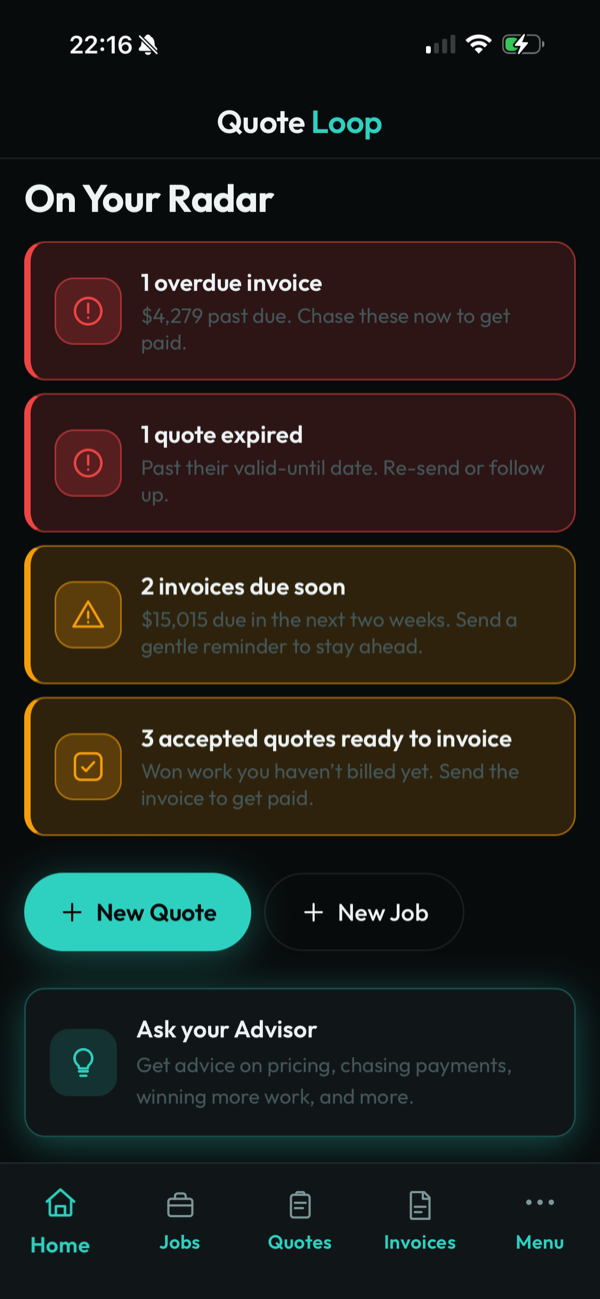
- Home: your dashboard, revenue this month, outstanding, active jobs, pipeline, plus an "On Your Radar" list of what needs doing. The stat cards are tappable and jump you to the right screen.
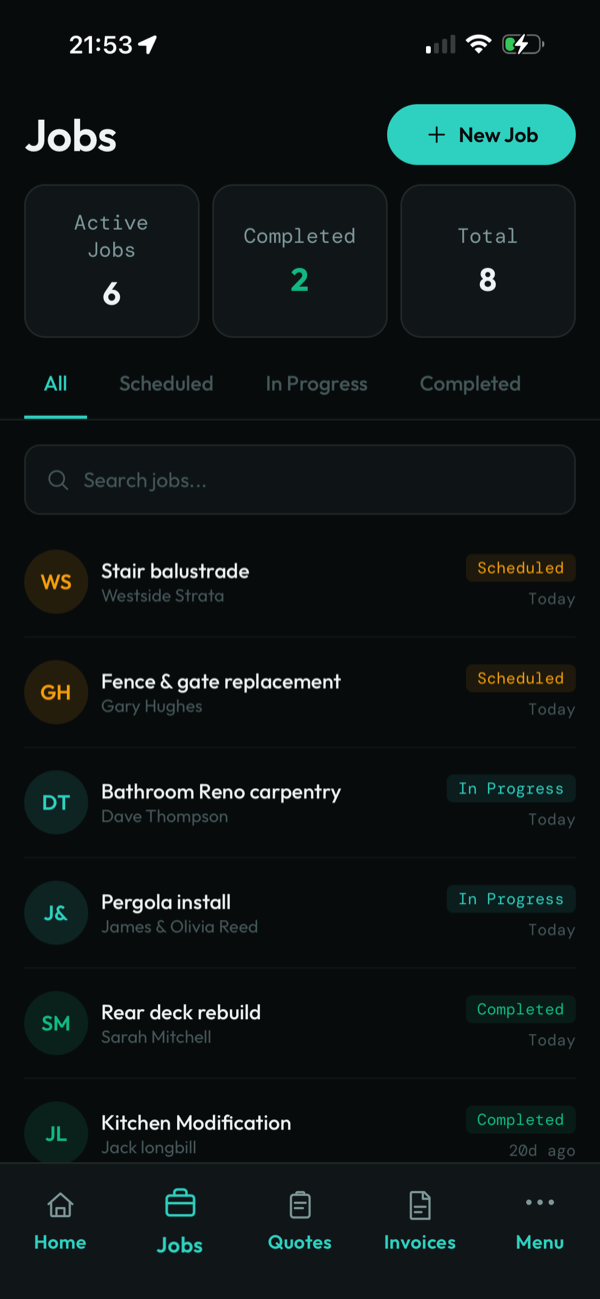
- Jobs: your job list.
- Quotes: your quote pipeline.
- Invoices: your invoices.
- Menu (⋯): the side drawer for everything else, Clients, AI (Pulse), Reports, Settings and Log out.
Clients
Open Menu → Clients, tap Add Client. Only the name is required, but to email a client a quote or invoice you must give them an email address. You can also store company, phone, ABN, address and notes.
To change a client's details later, tap the client → Edit.
Quotes
Create and send a quote
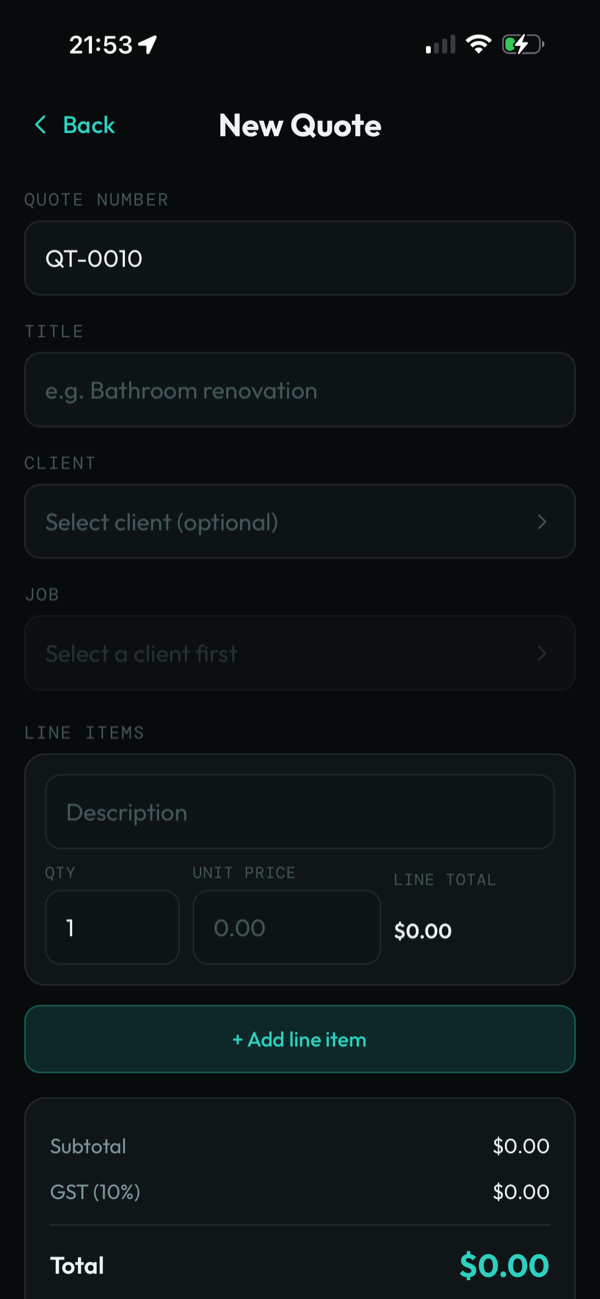
- From Home or the Quotes tab, tap New Quote.
- Pick a client (and a job if it relates to one).
- Add line items: description, quantity, unit price. Tax (from your Settings) and totals calculate automatically.
- Set the valid-until date (defaults to 30 days) and add any notes or photos (photos up to 6 MB each).
- Tap Save & Email to send the PDF to your client, or Save as Draft to finish later.
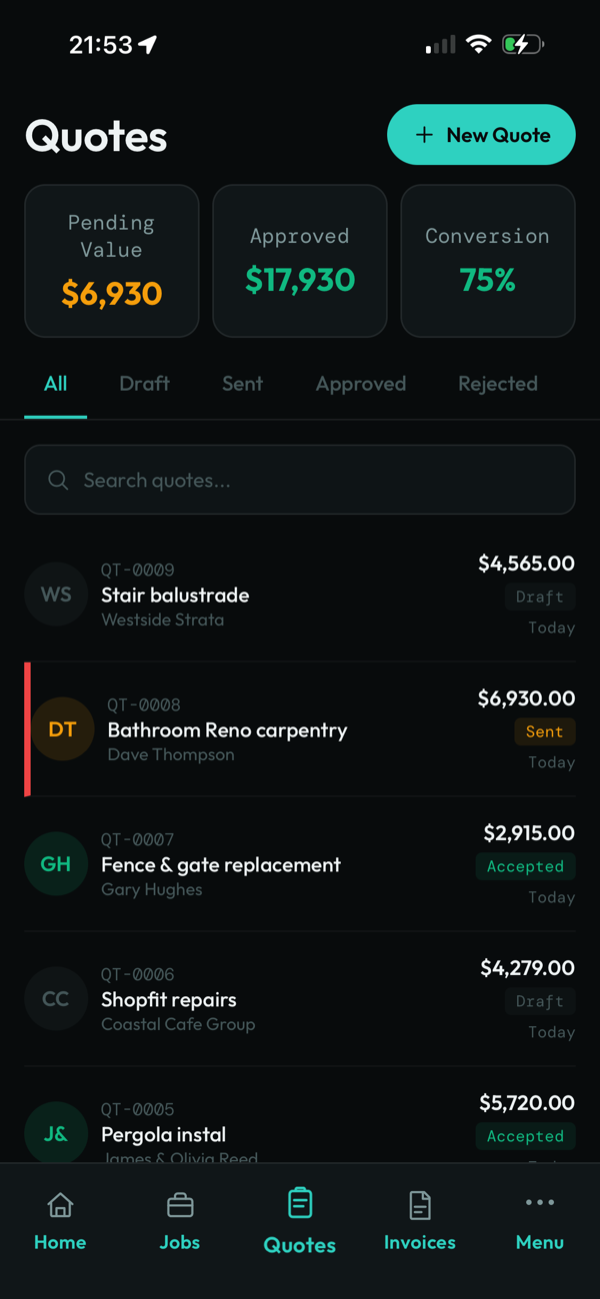
From a quote you've opened, you can Email it, Convert to Invoice, Mark Accepted, Edit or Delete. Once a quote is accepted, rejected or expired it locks and can't be edited.
Invoices
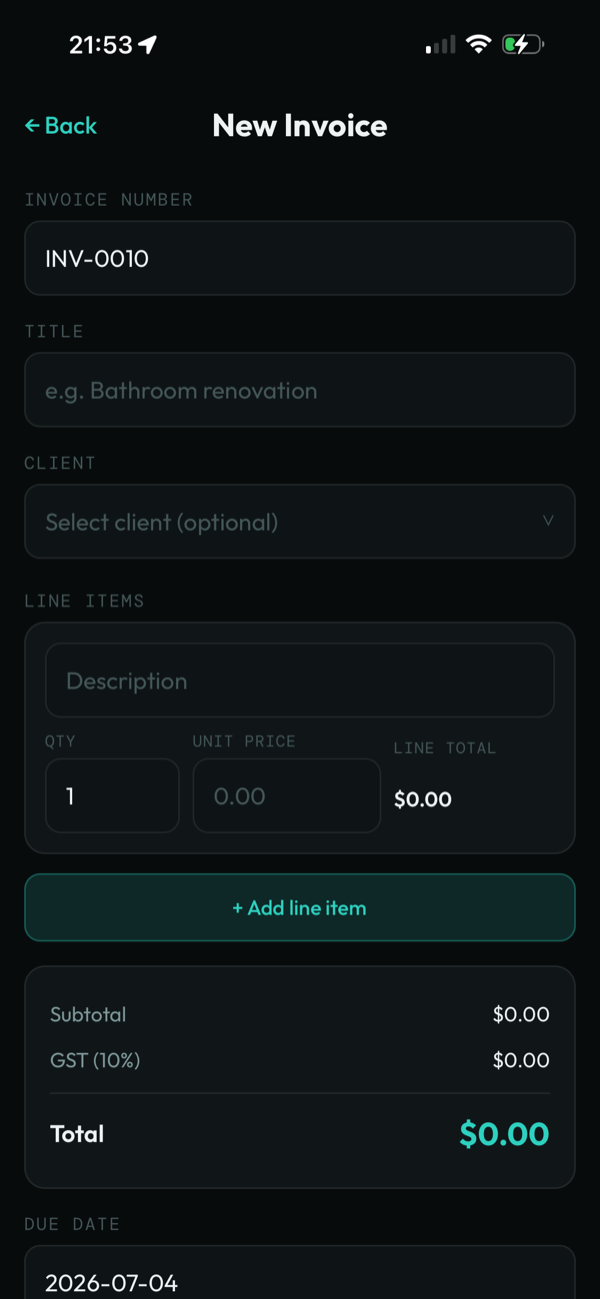
Create, send and get paid
- Tap New Invoice (or open a quote and Convert to Invoice).
- Pick the client, add line items, set the due date (defaults to 14 days).
- Tap Save & Email to send it.
- When you're paid, open the invoice and tap Mark as Paid.
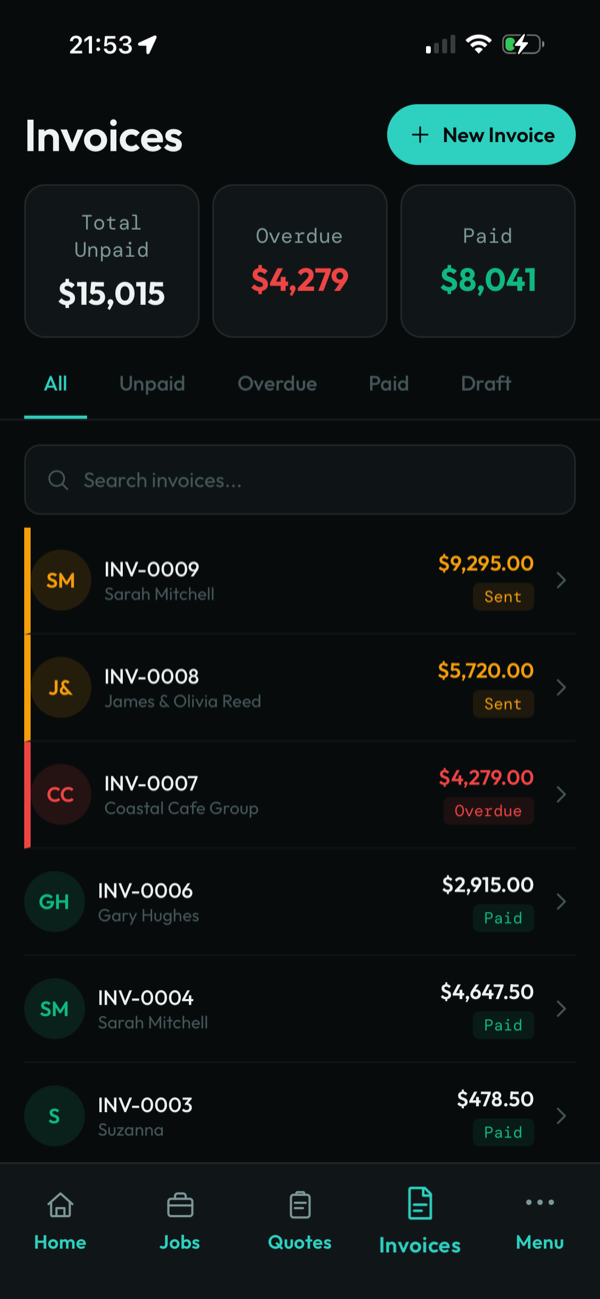
Invoices that pass their due date are flagged overdue (shown in red on Home and the Invoices list). Paid invoices lock and can't be edited.
Jobs
Use Jobs to track work from scheduled → in progress → completed. Tap New Job, give it a title and status. From an open job you can Create Quote from this Job or Create Invoice from this Job. The client and job link are filled in for you.
Reports & Pulse
Menu → Reports shows your numbers: revenue this month, win rate, collection rate, average days to get paid, plus charts. The Pulse block reads your data and tells you what's working, what's costing you time, and what to do next.
Pulse insights are part of Quote Loop Pro and are cached for 24 hours to keep things fast. Tap Refresh to regenerate them.
Pulse & AI workflows
Under Menu → AI you'll find your AI advisor and one-tap workflows: chase overdue invoices, follow up on quotes, business brief, cash-flow outlook, month summary, and document design. Each one drafts plain-English emails or insights from your real data. You review and approve before anything sends. AI features are part of Quote Loop Pro.
Document design
Menu → AI → Document Design lets you style your quotes and invoices: accent colour, fonts, logo position, headings, ABN and footer. You can design quotes and invoices separately. Describe a look and let Pulse generate it for you (Pro), then Save.
Heads Up
Heads Up is Quote Loop's regulatory radar: a short weekly digest of the rule, licensing, code and tax changes that affect your business and location, in plain English, with a link to the official source. It's a news-notifier, not advice. Coming soon.
Settings
Everything you can configure under Menu → Settings:
- Business details: owner, business name, ABN, phone, email, trade type.
- Bank & payment: account name, BSB, account number, BPAY.
- Tax: label and rate (e.g. GST 10%, VAT, Sales Tax), applied to new documents and toggleable per document.
- Terms & documents: default terms, email signature, and optional Quote/Invoice terms PDFs (up to 8 MB each).
- Branding: your logo (up to 10 MB).
- Theme: Light, Dark or System.
- Data export: email yourself a CSV of your quotes or invoices.
- Account & security: change email, change password.
- Delete account: permanently removes your account and all data.
Common issues & quick fixes
"My quote (or invoice) won't send to the client."
Why: Emailing a quote or invoice needs a client with an email address. You'll see "No client selected" or "This client has no email on file."
Fix: Go to Clients, open the client, tap Edit, add their email and Save. Then reopen the quote/invoice and tap Email. (No client yet? Add one first.) In the meantime you can always Save as Draft and email it later.
"It's asking me to subscribe when I tap an AI / Pulse feature."
Why: AI features (the advisor, workflows, Pulse insights and AI document design) are part of Quote Loop Pro.
Fix: Tap Subscribe to open the plan screen and start Pro. Everything else in the app works without Pro.
"I hit a daily AI limit."
Why: There's a daily cap on AI requests to keep things fair and fast.
Fix: Try again tomorrow, the cap resets each day. Your other work isn't affected.
"My photo, logo or PDF won't upload."
Why: There are size limits: photos 6 MB, logo 10 MB, terms PDFs 8 MB. You may also see "Storage limit reached."
Fix: Compress the file (Preview on Mac, or any free online compressor) and try again. If storage is full, remove old photos or documents.
"My PDF is missing my business or payment details."
Why: Those details come from Settings, and only apply to documents created after you save them.
Fix: Go to Settings, fill in your business details and bank/BPAY info, tap Save, then create or resend the document.
"I changed the theme but nothing happened."
Why: The theme applies the next time the app opens. You'll see "Reopen the app to apply your new theme."
Fix: Fully close the app (swipe it away) and reopen it.
"I can't edit a quote or invoice."
Why: Quotes that are accepted, rejected or expired, and invoices that are paid, are locked so records stay accurate.
Fix: Create a new quote/invoice for the changes, or email us if a status was set by mistake.
"An invoice shows as overdue."
Why: It's past its due date and not marked paid.
Fix: Chase the client (Pulse chase overdue invoices workflow can draft this for you), and tap Mark as Paid once it's settled.
"I made a quote while I had no signal."
Why: The app works offline and queues new items. You'll see "Will send when online."
Fix: Stay in the app until you're back online; it syncs automatically. Sending emails needs a connection.
"My win rate or report numbers look empty."
Why: Metrics build from real activity: drafts don't count, and there's not much to measure yet when you're starting out.
Fix: Send a few quotes and invoices; the numbers fill in and get more accurate over time.
"It's asking me to add a business email."
Why: If you signed in with Apple's private relay, we don't have a real address to reach you on.
Fix: Enter your real business email when prompted, or set it later in Settings → Account & Security. It's used for account recovery and the emails the app sends.
Still stuck? Request help
Fill this in and we'll get back to you. It opens an email to our support team with your details ready to send, just hit send in your mail app. If something went wrong, include the exact on-screen message; it helps us help you faster.
Prefer your own email app? Write to info@quoteloop.com.au directly.